
Someone sends you a screenshot of an address. A slide on a video call has the URL you need. A scanned PDF will not let you select anything. On a Mac there are four ways to turn that picture into text you can paste, and they suit different situations.
Three of them are free and built into macOS. The fourth is a dedicated OCR tool, which is what you want when you do this several times a day.
1. Live Text in Preview
Live Text is Apple's built-in text recognition. It works in Preview, Photos, Quick Look, Safari, and most places macOS shows an image. It has run on Apple Silicon Macs since macOS 12 Monterey and on Intel Macs since macOS 13 Ventura.
- Take the screenshot with ⇧⌘4 (drag a region) or ⇧⌘3 (whole screen). It saves to the Desktop.
- Double-click the file to open it in Preview.
- Move the pointer over the text. When the cursor turns into an I-beam, drag to select the words you want.
- Press ⌘C, or right-click and choose Copy Text.
If the cursor never changes, choose Tools, then Text Selection in Preview's menu bar and try again.
Good for: the occasional screenshot that is already saved as a file.
Limits: you have to save the image, open it, and switch back. Live Text does not run over live app windows or video, so it cannot help with the slide on your call unless you screenshot it first. It also has no keyboard shortcut and keeps no record of what you copied.
2. Live Text in Quick Look
Faster than Preview for a file you already have:
- Select the image in the Finder and press Space to open Quick Look.
- Drag across the text and press ⌘C.
Same recognition engine and the same limits as Preview, minus one app switch.
3. The Shortcuts app
Shortcuts has an action called Extract Text from Image. Build a two-step shortcut: Take Screenshot (set to interactive so you can drag a region) followed by Extract Text from Image, then Copy to Clipboard. Give it a keyboard shortcut in the shortcut's settings.
Good for: people who want a free hotkey and do not mind a little setup.
Limits: the Shortcuts screenshot action can be fiddly about permissions, the result is plain text with no image kept, and nothing is saved. If you copy something else, the text is gone.
4. A region-to-text OCR tool
Dedicated OCR utilities skip every step above: press a shortcut, drag a rectangle over anything on screen, and the text is on your clipboard. The rectangle can cover a video frame, a locked PDF, a remote desktop, or an error dialog you cannot select.
There are several. TextSniper, CleanShot X, Shottr, and TRex all do region OCR well. SnipVault does it too, and adds the thing the others leave out: a history.
With SnipVault:
- Press ⇧⌘2 over anything.
- Drag over the text. Recognition runs on your Mac with Apple's Vision engine; nothing is uploaded.
- The text is on your clipboard. Paste it.
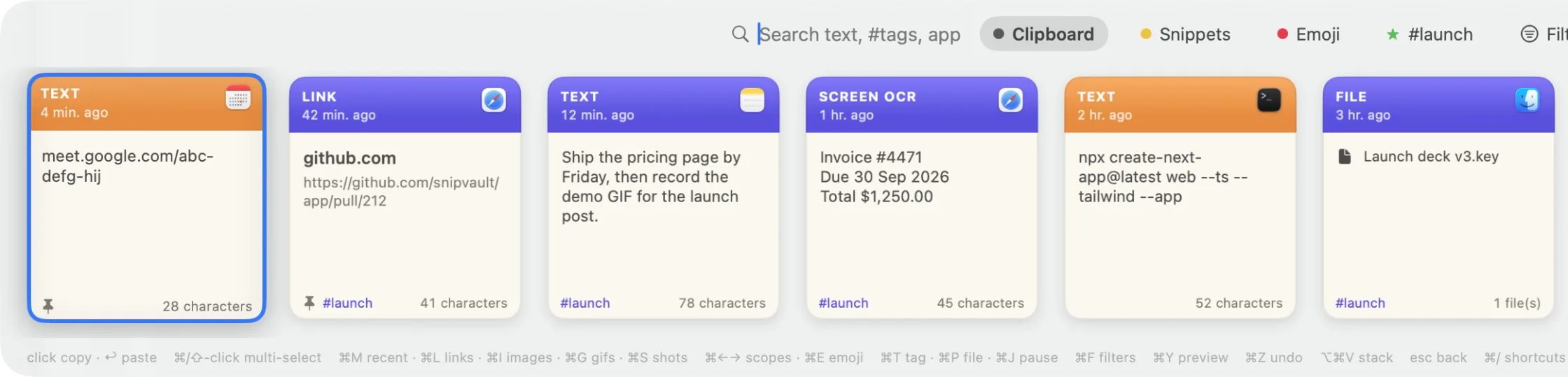
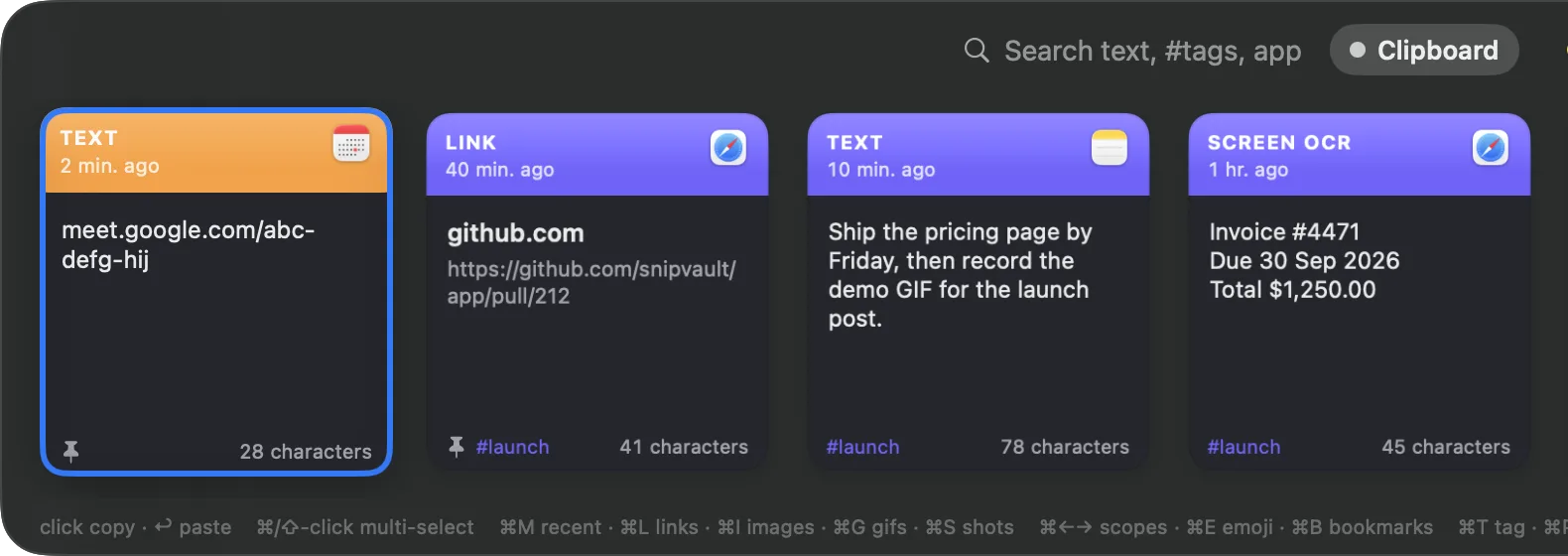
Both the text and the screenshot are saved to your vault, so a week later you can press ⇧⌘V, type a word you remember from that slide, and find the screenshot and its text together. QR codes decode straight to text as well.
Good for: anyone who copies text off screens more than a couple of times a week, or who needs to find those snippets again later.
Limits: it is a paid app after a 7-day trial. It runs on macOS 13 Ventura or later.
Which method should you use?
| Situation | Use |
|---|---|
| One screenshot, already saved | Quick Look or Preview |
| Text in a video, a call, or an app that blocks selection | Region OCR tool |
| You want a free hotkey and will build it | Shortcuts |
| You do it daily and need to find the text again later | SnipVault |
How do you get better OCR results?
- Zoom in first. Recognition improves with bigger text. In Preview, zoom before selecting; with a region tool, enlarge the window before you drag.
- Watch the columns. All OCR engines can read two columns as one line. Select one column at a time.
- Check numbers. Zeros and the letter O, ones and lowercase L, are the usual mistakes. Serial numbers and IBANs deserve a second look.
- Handwriting is a coin toss. Live Text handles neat print; cursive is unreliable in every tool.
What if you OCR screenshots all day?
If screenshots are part of the job, the manual routes above stop scaling quickly. Support agents reading order numbers off customer screenshots, developers copying stack traces out of a colleague's screen recording, translators lifting text from scanned pages: each one is a save, open, select, copy, switch, paste cycle, and the text is gone the moment you copy something else.
Two things change that. The first is a global shortcut that reads a region without saving a file, so the whole cycle collapses to press, drag, paste. The second is a history, so the invoice number you read on Monday is still searchable on Friday. SnipVault does both, and it can also watch your Screenshots folder and OCR-index every screenshot you take with ⇧⌘4 in the background, so a plain screenshot becomes searchable by the words in it without you doing anything.
Whatever tool you use, keep the source image next to the recognised text. Recognition is good, not perfect, and being able to glance at the original is what turns a wrong digit from a mystery into a two-second fix.
What about text in a PDF that will not select?
A PDF that refuses selection is usually a scan: an image of a page with no text layer. Preview's Live Text works on it the same way it works on any image, one page at a time. For a long document, a proper OCR app such as Prizmo or the OCR feature in PDF Expert adds a text layer to the whole file so it becomes searchable and selectable everywhere. For a paragraph or a table on one page, a region OCR shortcut is faster than either.
Yes. Open the screenshot in Preview or Quick Look, drag across the text, and press ⌘C. Live Text is built into macOS 12 Monterey and later on Apple Silicon, and macOS 13 Ventura and later on Intel.
In Preview, choose Tools, then Text Selection. If that does not help, the image may be too small or low-contrast; zoom in and try again. Very old macOS versions before Monterey do not have Live Text at all.
Yes, since macOS 13 Ventura. On macOS 12 Monterey it was limited to Apple Silicon Macs.
Pause the video, then use a region OCR tool such as SnipVault (⇧⌘2) to drag over the frame. Alternatively take a screenshot and open it in Preview, which takes a few more steps.
Live Text and SnipVault both use Apple's Vision framework on your Mac. The image never leaves the machine. Some other OCR tools send images to a cloud service; check the privacy policy before using one on sensitive documents.